Write your logic in Python or JavaScript. Use it in an Excel formula. JupyterForExcel connects the notebook you build with the spreadsheet you work in.
Illustrative formula example. Try the connected add-in in Excel.
● ● ●notebook.ipynbJAVASCRIPT
/**
* Adds tax to an amount.
* @excelFunction add_tax_js_run_local
* @execution local
* @param {number} amount Amount before tax.
* @param {number} rate Tax rate (e.g. 0.08).
* @returns {number} Amount including tax.
*/functionadd_tax_js_run_local(amount, rate) {
return amount * (1 + rate);
}
Runs locally in the Excel add-in JavaScript runtime.
↓ AVAILABLE IN EXCEL
X Budget.xlsx EXAMPLE
ƒx=Jupyter.add_tax_js_run_local(B2, C2)
A
B
C
D
1
Item
Amount
Tax rate
Total
2
Supplies
100
8%
108.00
3
Sheet1+
Save in a discovered JavaScript notebook, then reload the add-in. Illustrative result.
● ● ●notebook.ipynbJAVASCRIPT
/**
* Adds tax to an amount.
* @excelFunction add_tax_js_run_at_server
* @execution server
* @param {number} amount Amount before tax.
* @param {number} rate Tax rate (e.g. 0.08).
* @returns {number} Amount including tax.
*/functionadd_tax_js_run_at_server(amount, rate) {
return amount * (1 + rate);
}
Runs on the server in the notebook's Deno kernel.
↓ AVAILABLE IN EXCEL
X Budget.xlsx EXAMPLE
ƒx=Jupyter.add_tax_js_run_at_server(B2, C2)
A
B
C
D
1
Item
Amount
Tax rate
Total
2
Supplies
100
8%
108.00
3
Sheet1+
Save in a discovered JavaScript notebook, then reload the add-in. Illustrative result.
Keep Python in your notebook.Bring the result to your worksheet.↗
THE ADD-IN IN ACTION
From a cell to a whole workflow.
Two ways to use your notebook in Excel.
01 / FORMULAS
A familiar formula. Your Python behind it.
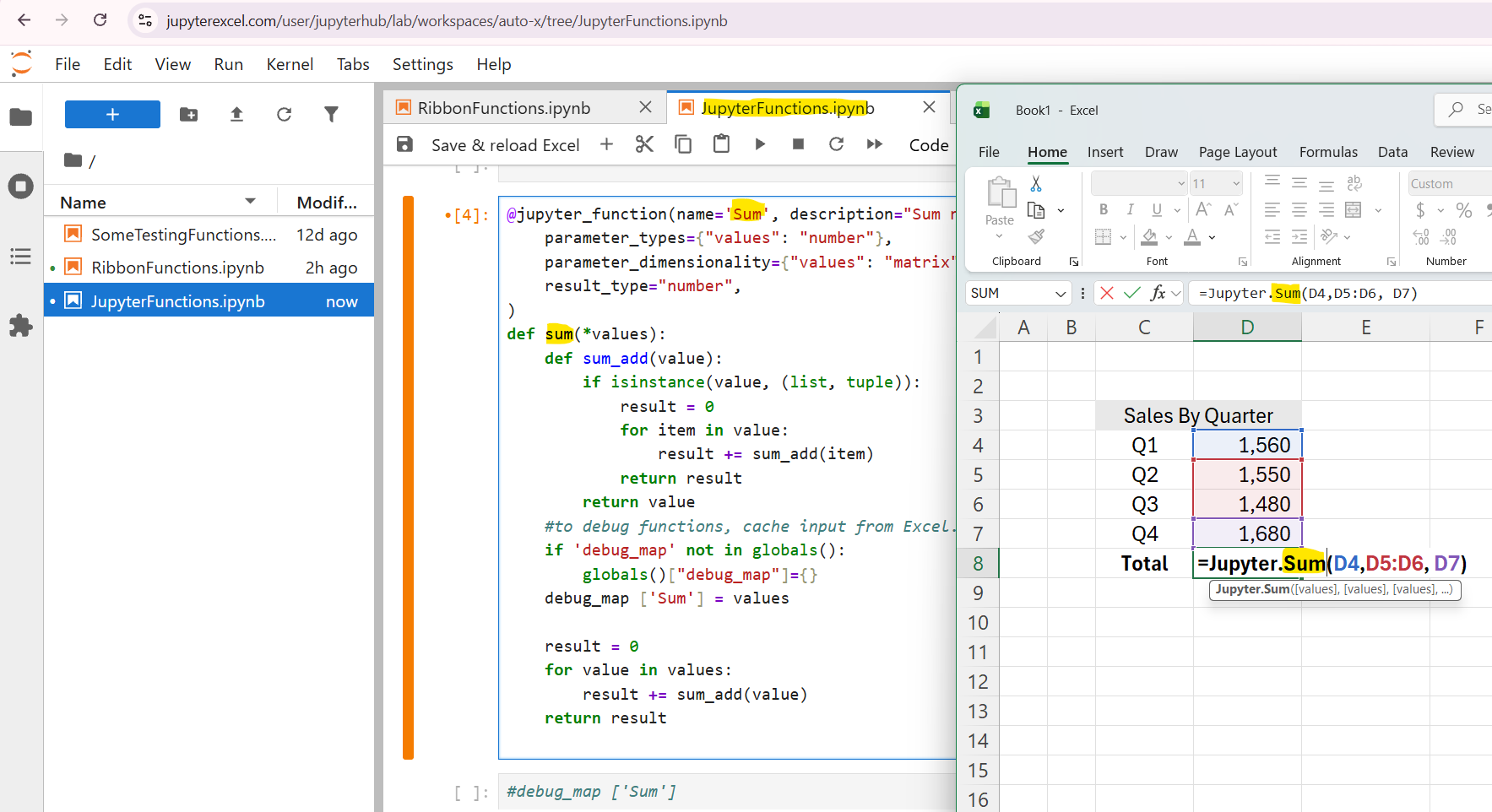
Expose a notebook function with @jupyter_function, then call it from a worksheet. Pass numbers or cell ranges and use the returned result in your workbook.
A notebook function, called directly from an Excel cell. Select the image to enlarge.
02 / NOTEBOOK ACTIONS
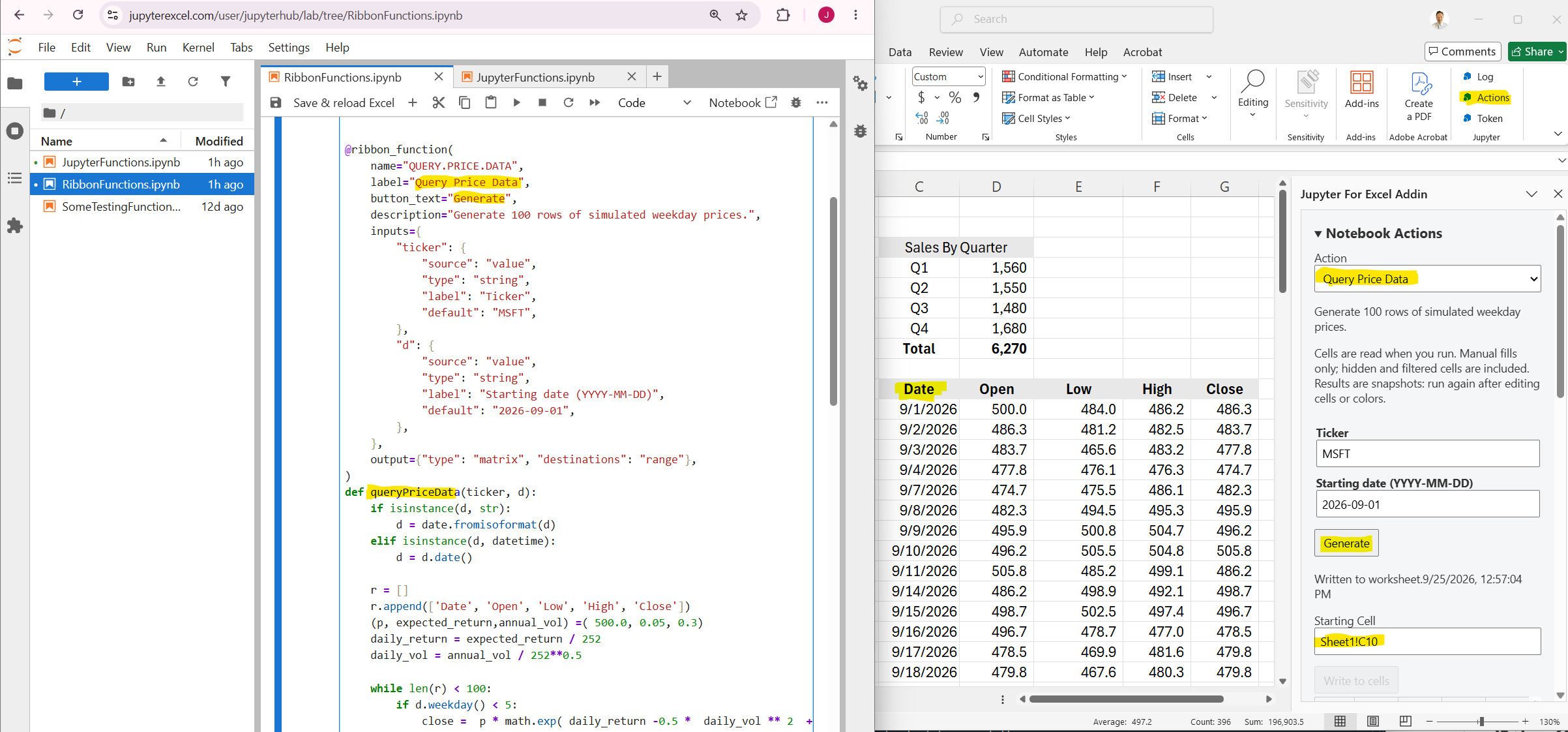
Run a notebook action. Fill your worksheet.
Use the Actions pane for tasks that need inputs and tabular output. The Query Price Data example generates simulated price data and writes it to the selected starting cell.